How can we help?
Search answers about orders, payments, listings and your account, or talk to the Nearif team on WhatsApp or email.
Rather talk to someone? WhatsApp +1 (804) 904-2625

Answers
The questions people ask us most, with the steps to sort them out yourself.
- Open the Nearif app and search for a grocery store or a product near you.
- Add what you need to your cart from that store.
- Choose delivery or pickup, check your address and pay.
Every order shows where it is: Order placed, Ready for pickup, Picked up, On the way, then Delivered. Open the order in the app to see its current step.
Yes, when the store offers pickup. Choose pickup at checkout, then collect your order once it shows Ready for pickup.
Ask to cancel from the order as early as you can, or message the store from its Nearif page. Once the store accepts, the order shows Cancelled, and an online payment is refunded.
Message the store first from its Nearif page: the store can fix most problems fastest. If it isn’t sorted, send us a ticket with the order details and a photo.
Send a ticket- Log in, open the profile icon at the top right and choose List your Business.
- Under Search existing directory, choose Skip and continue.
- Fill in your name, email and password.
- Click Next, then add your address, category, contact details and a short description.
- Upload clear photos, check every detail and click Finish.
- Search for your business from the homepage.
- Open its page and click Claim Your Business at the top.
- If you already have an account, the request goes to our team. Once approved, the business is yours.
No account yet? Sign up first, then claim your business.
- Log in and open your business list from the dashboard.
- Click Verify Business.
- Pay with eSewa (Nepal) or Stripe (USA).
- Once the payment goes through, your business is verified automatically.
- Log in and open your Dashboard.
- Find your business and click Edit.
- Update the name, address, phone number, opening hours or any other detail.
- Add new photos, services or offers to keep the listing fresh.
- Click Finish to save.
- Make sure your business is verified.
- Click Promote on your listing in the dashboard.
- Pay with eSewa (Nepal) or Stripe (USA).
- After payment, your business is featured at the top of the homepage.
A “Message verified” notice means a customer’s message has reached you. A good reply:
- Thanks them and confirms you got the message.
- Answers the question and says what happens next.
- Offers help with anything else they need.
- Log in and open your Dashboard.
- Select the business you want to remove.
- Click Remove Business in its settings menu.
- Confirm the removal.
Khalti and eSewa in Nepal, and cards through Stripe in the USA.
A failed payment shows as Failed and the order isn’t placed. If money left your account anyway, send us a ticket with the order and the payment details so we can look into it.
Send a ticketThe store starts a refund from the order. You’ll see it move through Refund initiated, Refund processing and Refunded, and the money goes back through the payment method you used.
You see the price before you pay: open your business in the dashboard and click Verify Business or Promote.
Connect a payout account through Stripe on the Payout method page in your dashboard. Payments for your orders are paid out to that account.
- Click Sign Up on the Nearif homepage.
- Enter your name and email, and choose a password.
- Open the verification link we email you.
- Add a profile photo and details, then start exploring places near you.
Forgot it? Use Forgot password on the log-in page and follow the link we email you. Signed in? Change it here:
- Tap your profile icon and choose Settings.
- Open Password & security.
- Set your new password.
- Log in and open Settings.
- Choose Profile.
- Update your photo, name and details.
- Save your changes.
- Log in and open Settings.
- Choose Delete account.
- Confirm with your email.
This is permanent and cannot be undone.
No. We don’t store where you are. Nearif uses your current location only while you search, to show places near you, and you can turn location access off at any time.
- You: only you can see your search history and saved places.
- Our team: we see combined, anonymised data to improve Nearif. Personal details are never sold.
- Trusted partners: they may receive anonymised location data, used only to improve recommendations.
Watch how it’s done
Short videos from the Nearif team. Each one walks through one task, start to finish.
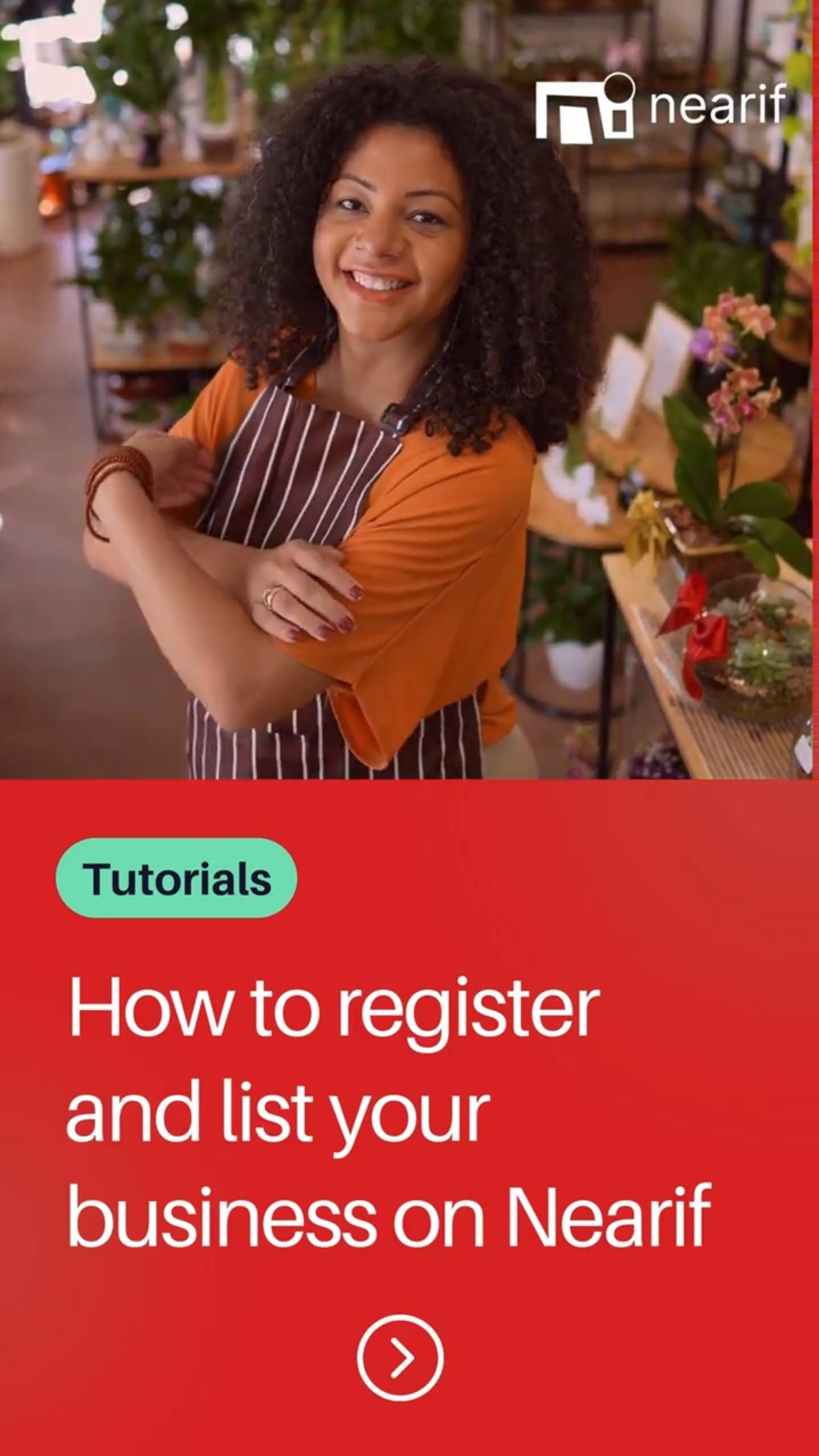
For business owners. Register on Nearif and put your shop on the map, step by step. Posted September 2025.
New guides on YouTube
Merchant guides and shopper walkthroughs from the Nearif team. Subscribe and you’ll see the next one first.
Talk to a person
Message us on WhatsApp for the quickest reply, or email us with the details and any screenshots.

Chat on WhatsApp
Opens WhatsApp with a message started for you. Tell us what you need and we’ll take it from there.
Message us on WhatsAppSend us a ticket
Tell us what happened and we’ll reply by email. Your ticket goes straight to the support team.

- Goes to
- support@nearif.com
- Helps us answer faster
- Order or business name, what you expected, and a screenshot.